Reading this in another language? Use your browser's built-in translate option. Button and field names stay in English on purpose, to match what you see in Keysender.
Blocklist a customer to stop future deliveries to them. Allowlist a customer to let them bypass your fraud screening rules. Both lists are account-wide, so a block or allowance you add applies to every connected channel, starting with the next order.
TL;DR
Make sure you have:
Open People, then Customers in Keysender.
Find the customer, using Search customers if needed.
Click the arrow next to Details on the customer's row.
Select Add to blocklist or Add to allowlist. If the customer is already on one list, this menu instead shows Remove from blocklist or Remove from allowlist, alongside the option to add them to the other list.
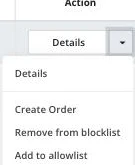
You can also open Details on the customer, then More Actions, then Mark as Blocklisted or Mark as Allowlisted - the same result from the customer's own page.
If the customer has never ordered from you, add them before you can blocklist or allowlist them:
Open People, then Customers, and click Add Customer.
Enter their email, and optionally their name and phone number.
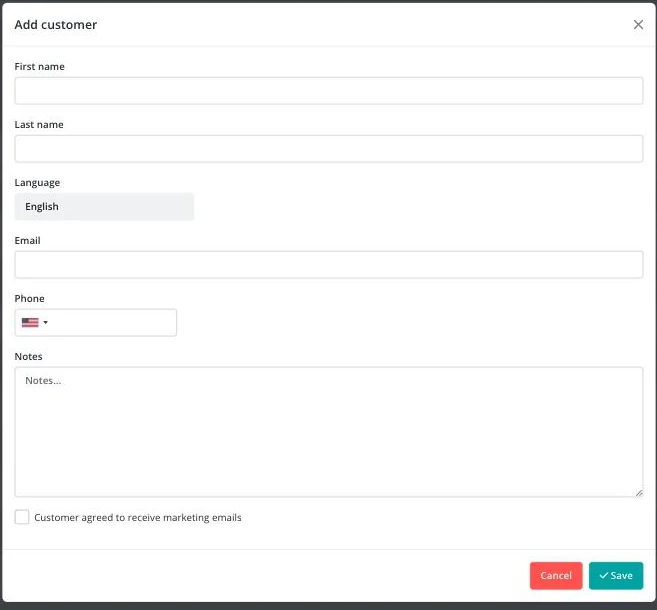
Click Save, then follow the steps above to blocklist or allowlist them.
The customer shows a Blocklisted or Allowlisted tag next to their email under People, then Customers, and appears on the matching Blocklisted or Allowlisted tab. Blocked customers no longer receive deliveries. Allowed customers bypass your fraud screening rules. See Managing your customers for the rest of what that page can do.
| Symptom | Cause | Action |
|---|---|---|
| A blocklisted customer still receives a code | The order was placed, or already in progress, before the block was added | Blocking only affects orders placed after the block; cancel or resend the in-progress order separately |
| The customer cannot be found to block | They have never placed an order and were not added manually | Add them under Customers first, then blocklist or allowlist them |
| The action menu shows the wrong option | The customer is already on the other list | The menu always shows Remove from the list they are currently on, alongside Add to the other one |
Submit a claim so Keysender Support can review it.
The block list stops future deliveries to a specific customer. The allow list lets a customer bypass the security rules on your product database. Blocked customers no longer receive deliveries, while allowed customers skip your database security checks.
Open People then Customers, search for the customer, then click Action then Details on their row. Select Blocklist or Allowlist. The customer then appears in the chosen list under People then Customers.
Yes. Open People then Customers, select the Block list or Allow list tab, and click Add Customer. Enter the customer's email to add them manually. They then appear in the list you selected.
