Reading this in another language? Use your browser's built-in translate option. Button and field names stay in English on purpose, to match what you see in Keysender.
Add FAQ entries to your Access Page so guests can find answers to common questions without contacting support. The most useful entries cover how to redeem the code, which region or platform it works on, and what to do if activation fails. Each FAQ you add appears on every Access Page delivery for its assigned products.
TL;DR
Make sure you have:
Open Catalog in Keysender, then select FAQ.
Click Add FAQ record.
Enter the question and answer.
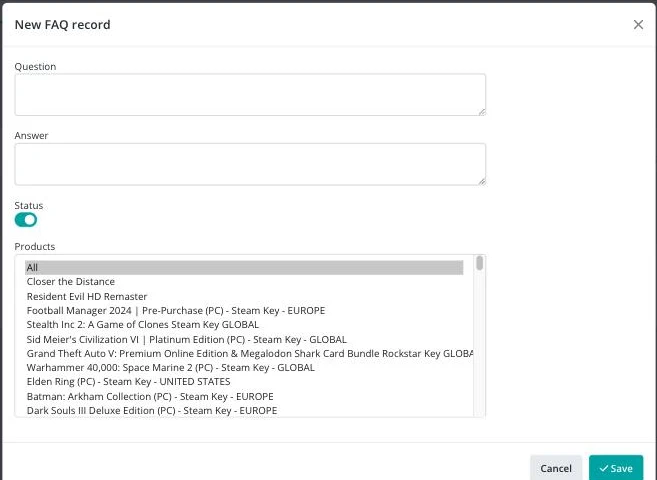
Leave Status on to make the FAQ active.
Under Products, select All to apply it to every product, or select specific products from the list.
Review the question and answer for accuracy.
Click Save.
Click Preview next to Add FAQ record to see how the Access Page looks with your FAQs, or the FAQ record shows as active in your FAQs list and appears on the Access Page for the assigned products.
| Symptom | Cause | Action |
|---|---|---|
| The FAQ does not appear on the Access Page | Status is off, or the product it should apply to was not selected under Products | Reopen the FAQ record, turn Status on, and check the product list |
| The FAQ appears on the wrong products | All was selected instead of specific products, or vice versa | Edit the FAQ record and adjust the Products selection |
| A new product does not show a FAQ that should apply | The FAQ was assigned to specific products before the new product existed | Edit the FAQ record and add the new product to Products |
Submit a claim so Keysender Support can review it.
Open Products in Keysender, then select FAQs. Click Add FAQ Record, enter the question and answer, and set the status to Active. Once saved, the FAQ appears on the Access Page so guests can find answers without contacting support.
Yes. When you create an FAQ record, you can assign it to specific products, or click All to apply it to every product. The FAQ then appears on the Access Page for the products you assigned it to.
Set the status to Active before saving. Review the question and answer for accuracy, then click Save. The FAQ record shows as active in your FAQs list and appears on the Access Page for the assigned products.
