Create an inventory database in Keysender and add your keys or files so they can be delivered to customers across your connected channels. A database is one pool of stock for one product, so each connected listing draws from the same count and you never oversell the same key twice. Add codes by pasting them or uploading a file.
Open Catalog then Inventory in Keysender.
Click Add New.
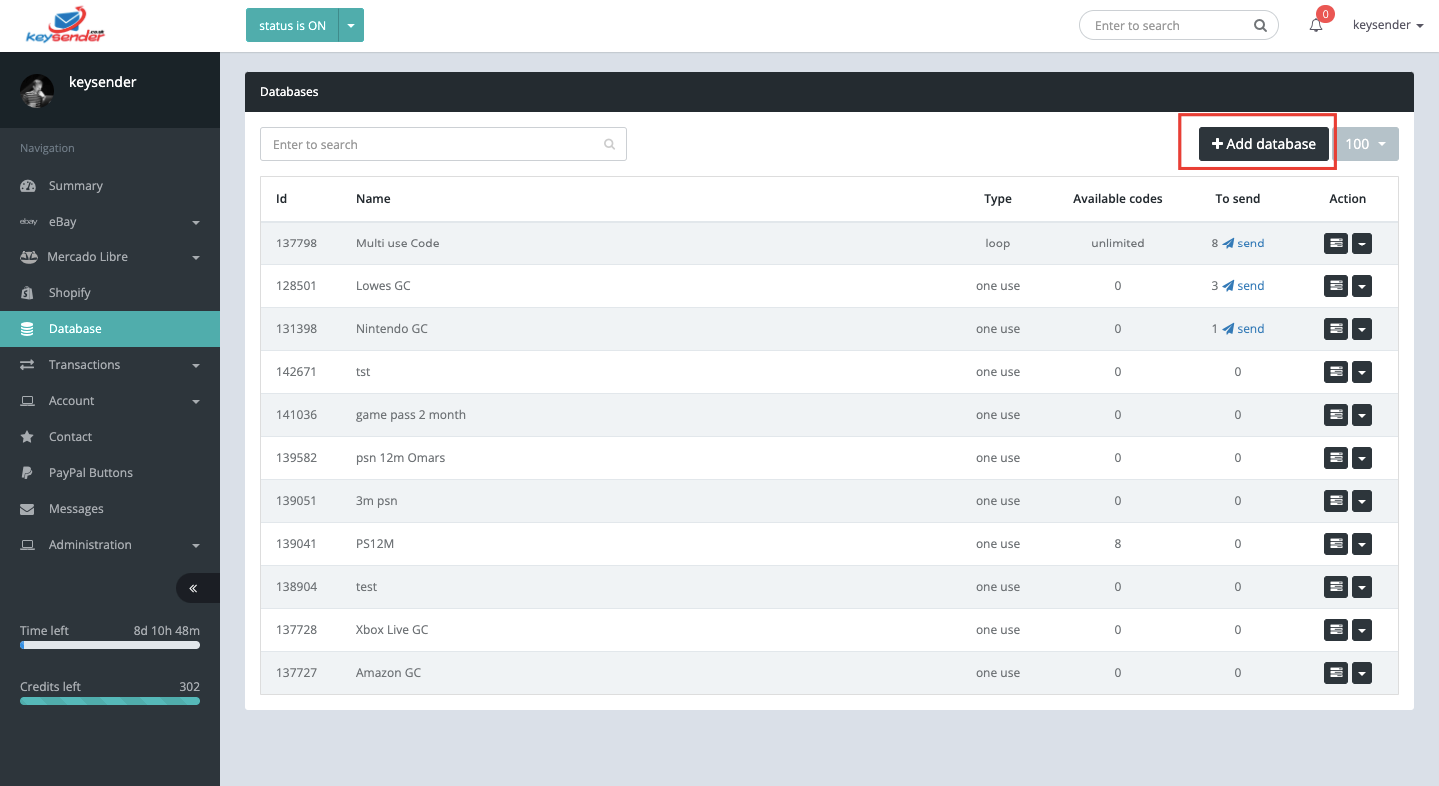
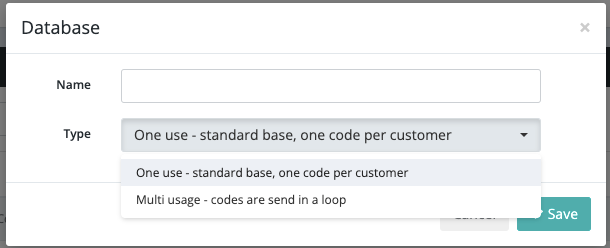
Select the inventory type.
Enter a name for the inventory.
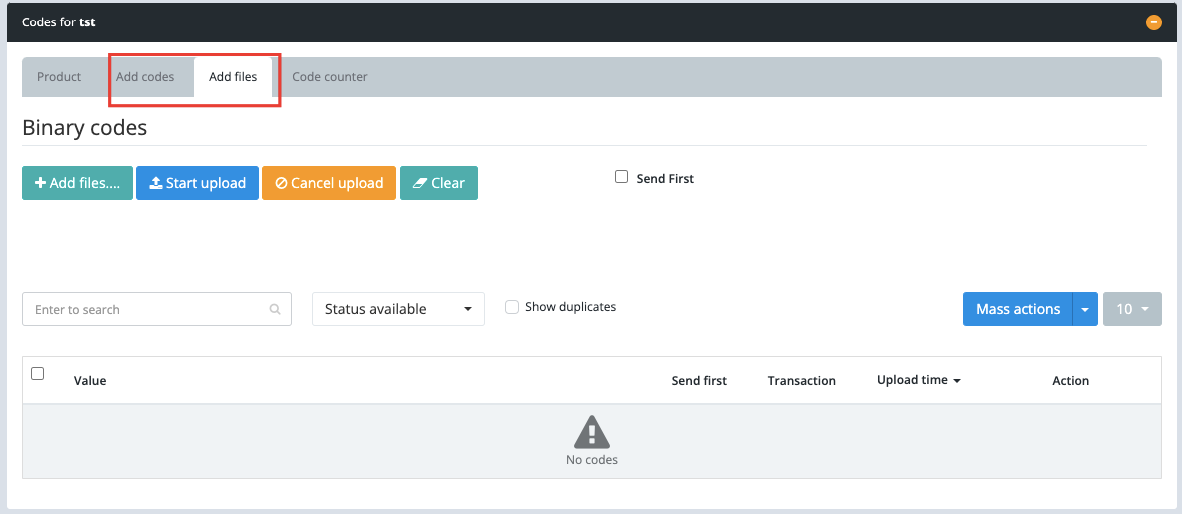
Add your keys as text or upload files up to 100MB per file.
In the details tab, add an Inventory Message using the [INVENTORY_MESSAGE] variable. This message can be added to email or inbox templates and appears on the guest Access Page.
Add a SKU for tracking.
Set a usage limit for unique keys if needed. This controls how many unique customers can receive the same key.
Click Save.
The new database appears in your inventory list with the keys or files you added. You can now connect it to a product in any connected channel.
Submit a claim so Keysender Support can review it.
Choose One use for unique keys like activation codes or game codes, where each code goes to one customer. Choose Multi-usage for reusable items like images, PDFs, multiple-use codes, or reset instructions that can be delivered to many customers.
You can add your keys as text or upload files up to 100MB per file. Multi-usage inventory suits files like images, PDFs, and reset instructions, while One use suits unique keys entered as text.
In the details tab you add an Inventory Message using the [INVENTORY_MESSAGE] variable. This message can be added to email or inbox templates and appears on the guest Access Page, so buyers see it alongside their delivered product.
