Connect your Eneba seller account to Keysender to automate digital product delivery for Eneba orders. Eneba issues API credentials only to seller accounts with two-factor authentication enabled, so turn that on first. After the connection, paid Eneba orders are delivered from the database you map, and stock stays in sync with your other channels.
Make sure you have:
Go to the Eneba API Credentials page.
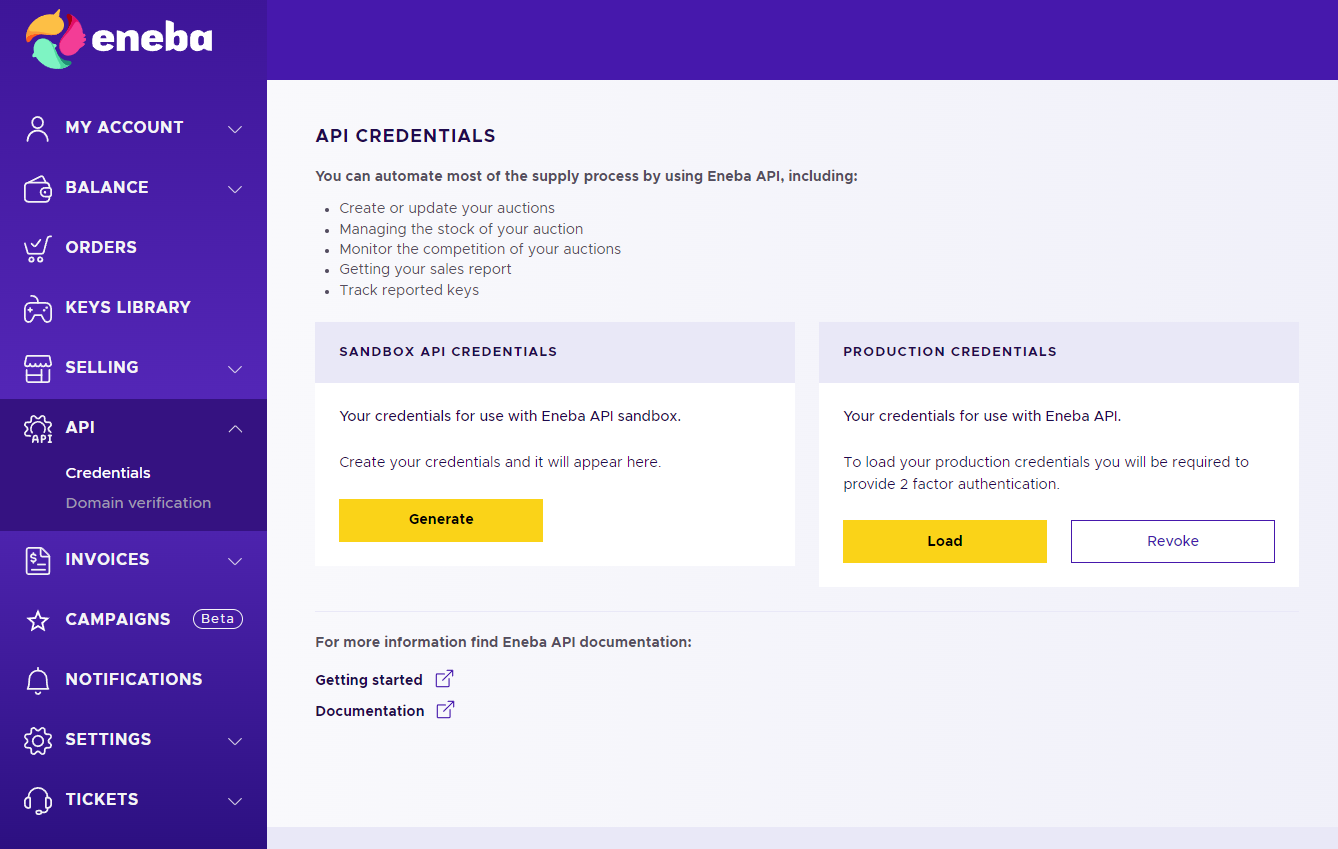
Click Generate for both sandbox and production credentials.
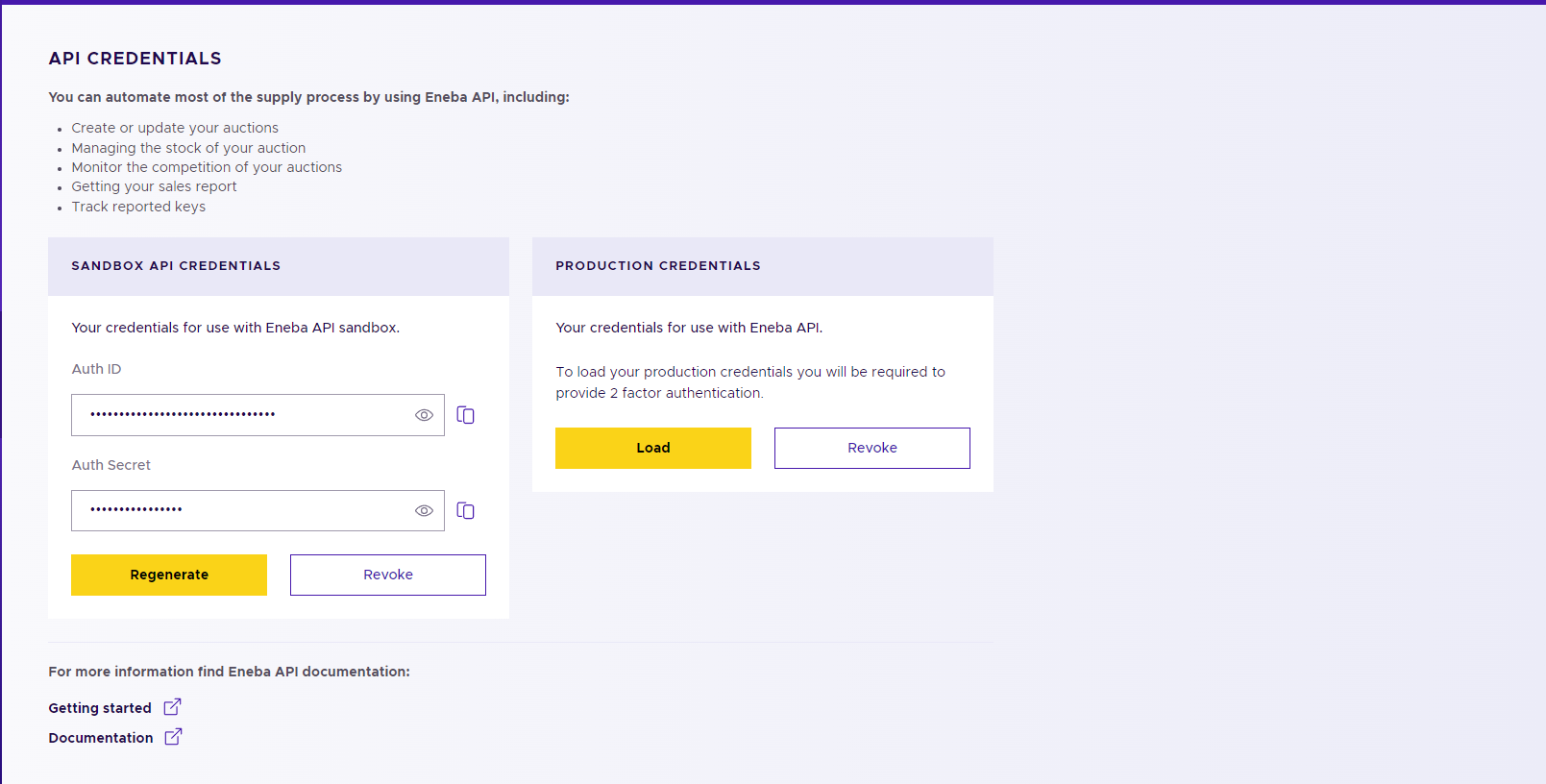
Copy the Auth ID and Auth Secret for both environments.
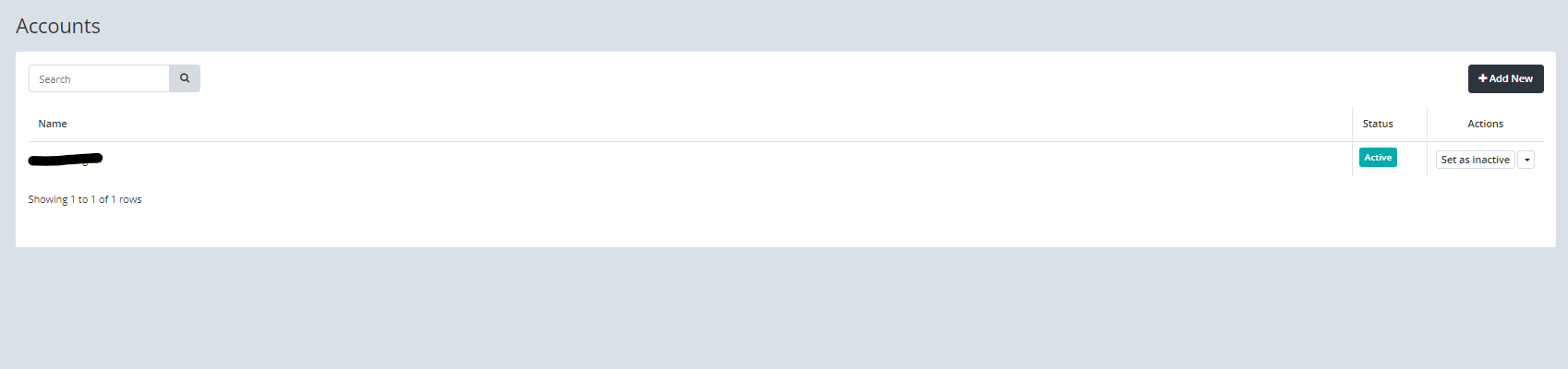
Open Integrations in Keysender, click Add New, and select Eneba.
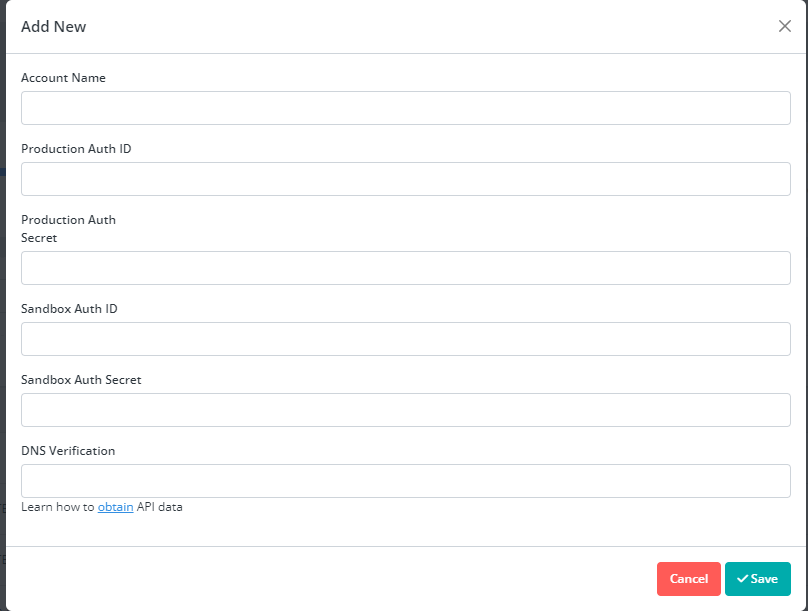
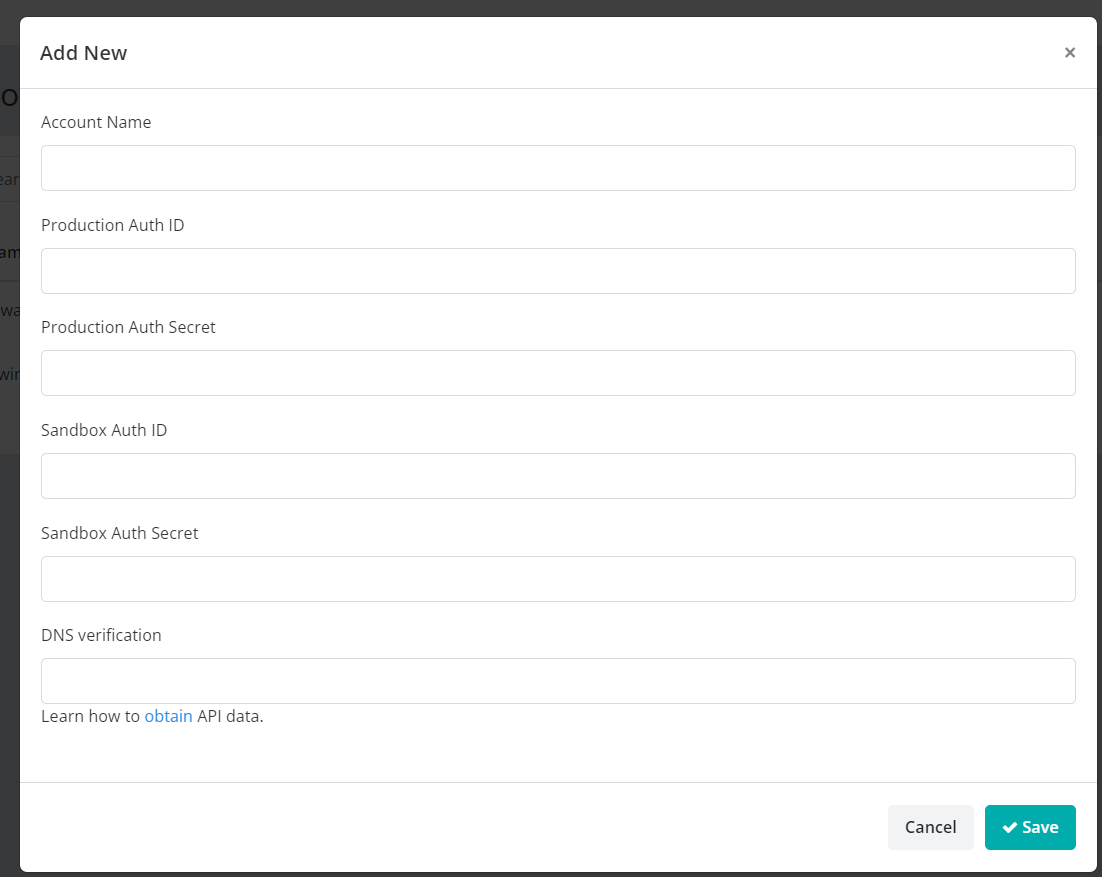
Paste the Auth ID and Auth Secret into the matching sandbox and production fields.
Go to the Eneba domain verification page and copy the TXT record.
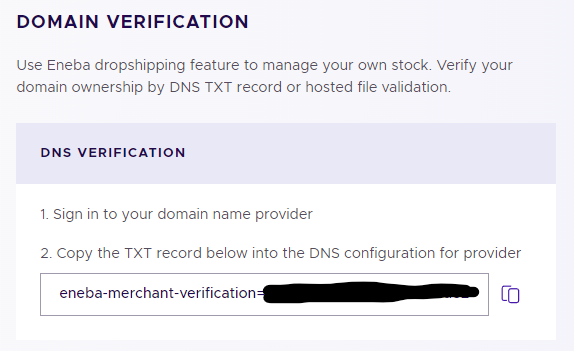
Paste the TXT record into the DNS verification field in Keysender.
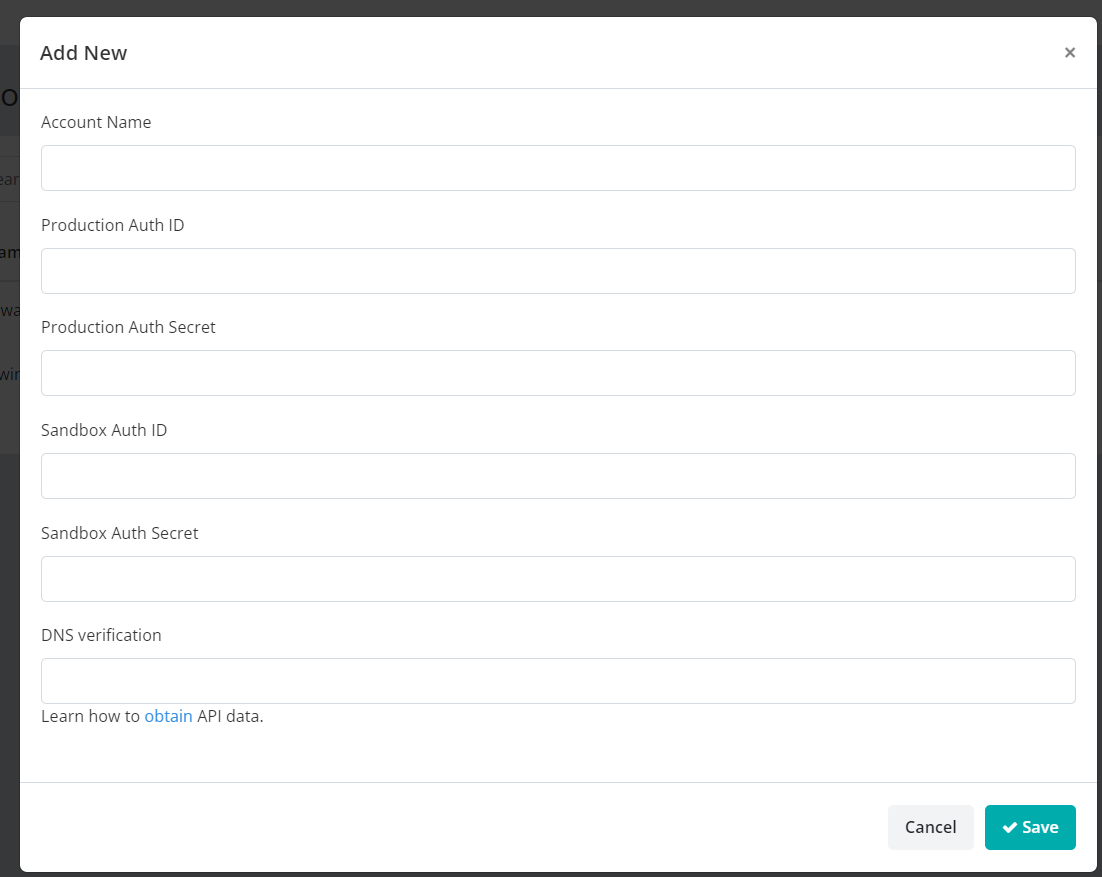
Click Save. If verification takes longer than a minute, mark the integration as active manually.
Return to the Eneba domain verification page and click Verify Domain.
209.38.234.89.In Keysender, open Eneba Products.
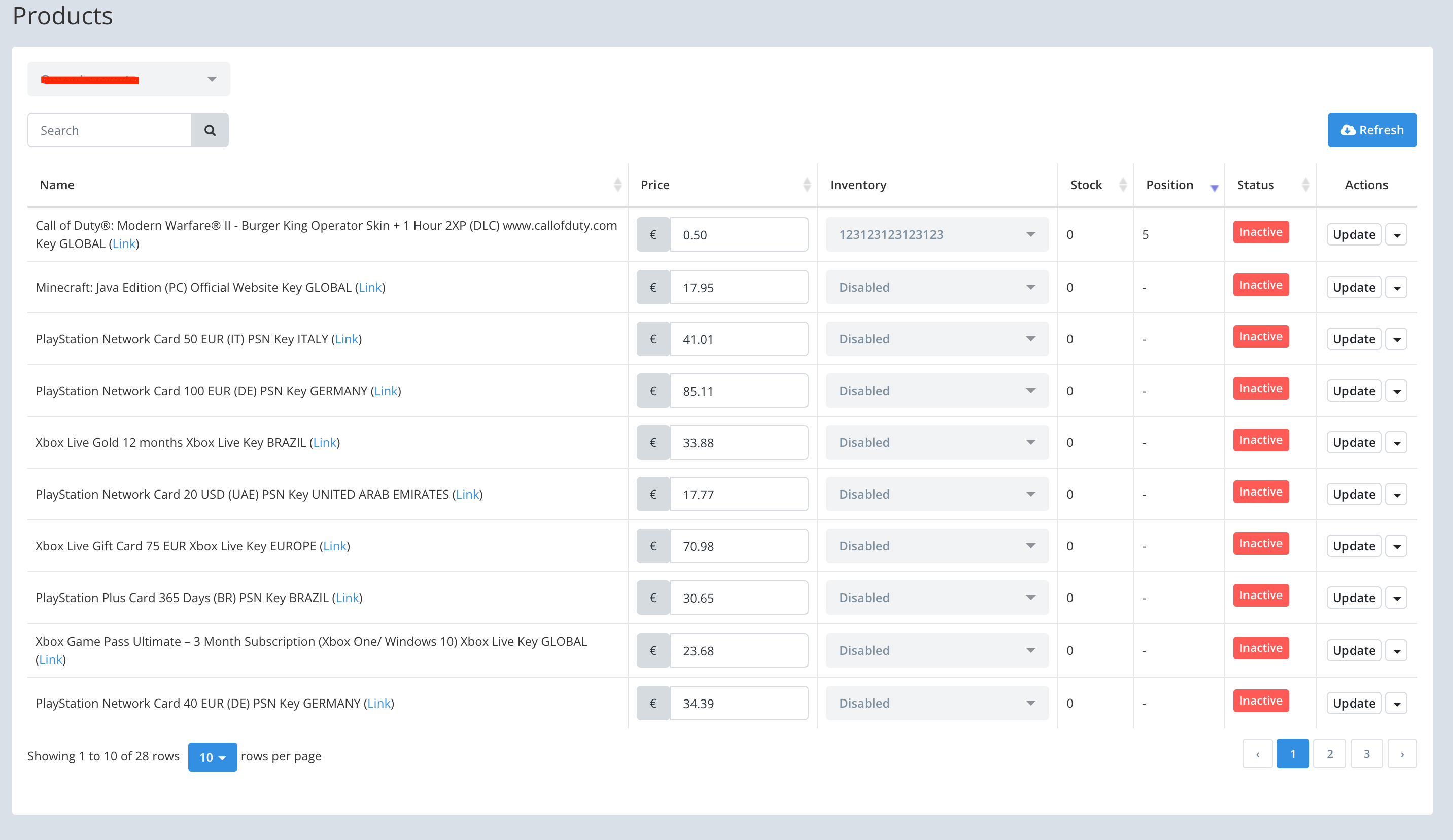
If a product is not listed, go to Eneba, click Sell Item, and select the item you want to sell.

Start your auction in Eneba. The listing then appears in Keysender.

Assign each Eneba listing to a Keysender inventory database, adjust the price if needed, and activate the listing.
Your Eneba products appear in Keysender with databases assigned. Eneba sales show on your Keysender Summary page with order details and assigned keys.

Orders marked as "Reserved" on Eneba are held temporarily. They are usually canceled within 6 hours but can take up to 24 hours. If a buyer returns a key on Eneba, the transaction still shows as complete in Keysender and the stock returns to your Eneba inventory for the next order.
Submit a claim so Keysender Support can review it.
You need access to your Keysender vendor account, a registered Eneba seller account, and 2FA enabled on Eneba, which Eneba requires for API access. You then generate Auth ID and Auth Secret credentials for both the sandbox and production environments.
Add the Keysender IP address 209.38.234.89 on the Eneba API Credentials page. You also complete domain verification by copying the TXT record from Eneba, pasting it into the DNS verification field in Keysender, saving, then clicking Verify Domain on the Eneba page.
Orders marked as Reserved on Eneba are held temporarily and usually canceled within 6 hours, though it can take up to 24 hours. If a buyer returns a key, the transaction still shows complete in Keysender and the stock returns to your Eneba inventory for the next order.
