Connect your WooCommerce store to Keysender to automate digital product delivery for WooCommerce orders. After you authorize the store, Keysender receives each paid order, matches it to the database you connected, and delivers the code to the buyer without manual work. You need admin access to your WooCommerce store to complete the setup.
Make sure you have:
Open Integrations in Keysender.
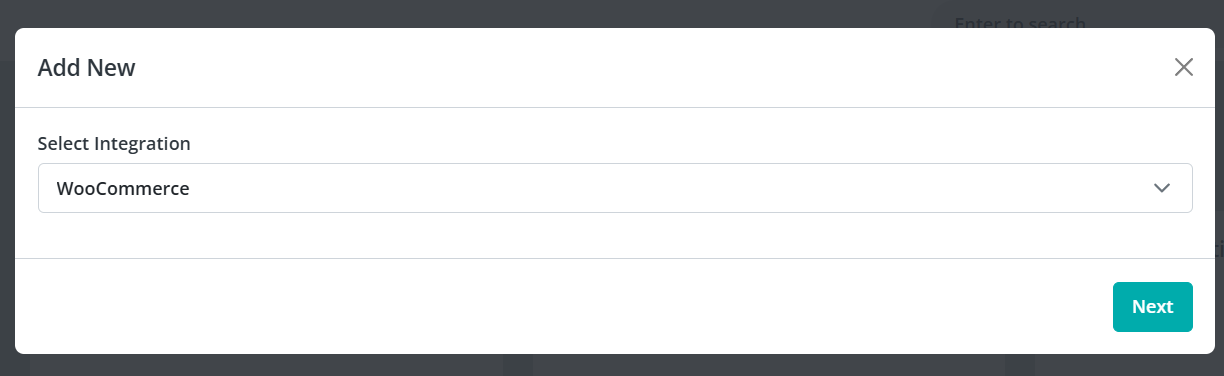
Find WooCommerce and click Add New.
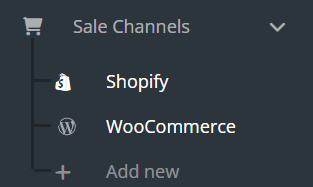
Open WooCommerce from the sidebar and confirm your WooCommerce products are visible.
Select Stores in the sidebar, then click Add New.
In your WooCommerce dashboard, go to Settings, then Advanced, then REST API.
Click Add key.
Enter a description such as "Keysender Integration".
Set Permissions to Read/Write.
Click Generate API Key.
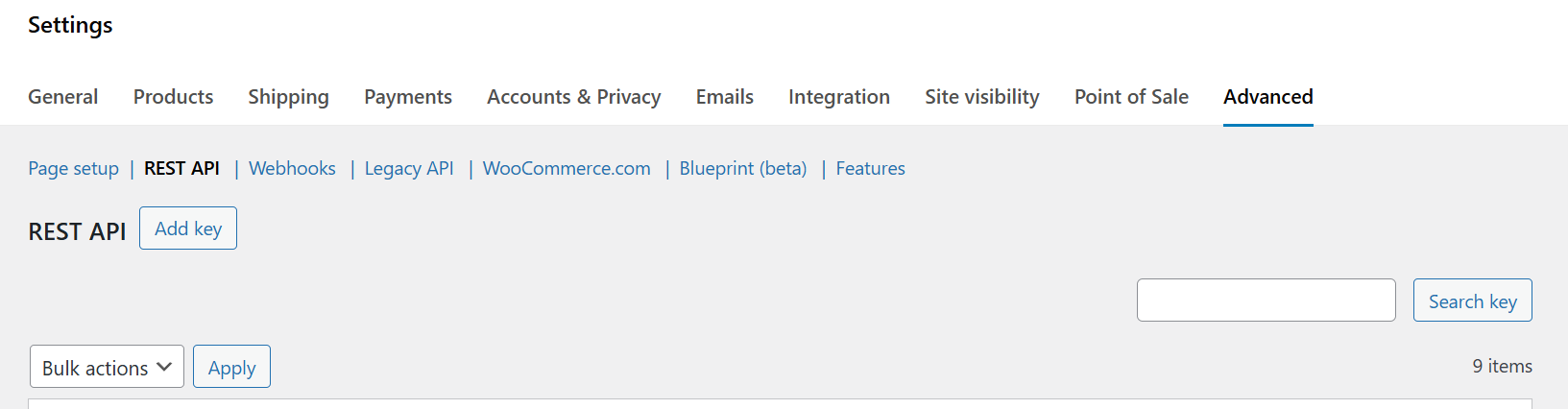
Copy the Consumer Key and Consumer Secret.
Return to the Stores form in Keysender.
Enter your store URL and paste the Consumer Key and Consumer Secret.
Click Save to authorize the connection.
Open WooCommerce, then Products in Keysender.
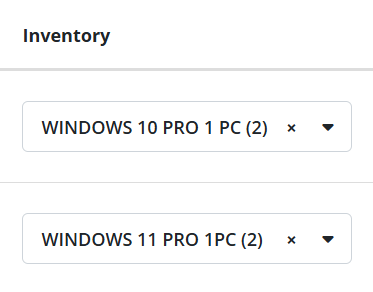
Link each WooCommerce product to the correct Keysender inventory database.
Open a specific product and connect it to its Keysender database.
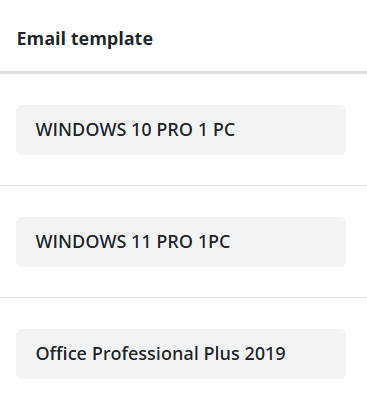
Assign an email template if you want a custom delivery email, then set its status to Active.
Your WooCommerce products appear in Keysender with databases assigned. When a buyer purchases on your WooCommerce store, Keysender fulfills the order automatically.
Submit a claim so Keysender Support can review it.
In your WooCommerce dashboard, go to Settings, then Advanced, then REST API. Click Add key, enter a description such as Keysender Integration, and set Permissions to Read/Write. Click Generate API Key, then copy the Consumer Key and Consumer Secret.
Open Integrations, find WooCommerce, and click Add New. Select Stores in the sidebar, then click Add New. Enter your store URL, paste the Consumer Key and Consumer Secret, and click Save to authorize the connection.
Open WooCommerce, then Products in Keysender. Link each WooCommerce product to the correct Keysender inventory database. Assign an email template if you want a custom delivery email and set its status to Active. Keysender then fulfills WooCommerce orders automatically.
