Connect your Kinguin seller account to Keysender to automate digital product delivery for Kinguin orders. Kinguin has to approve your Public API access for production first, with Declared Stock activated. Once the Public ID and Secret are in Keysender, paid Kinguin orders deliver automatically and your declared stock follows the database count.
Make sure you have:
Open Integrations in Keysender, click Add New, select Kinguin, and click Next.
Select Stores in the sidebar.
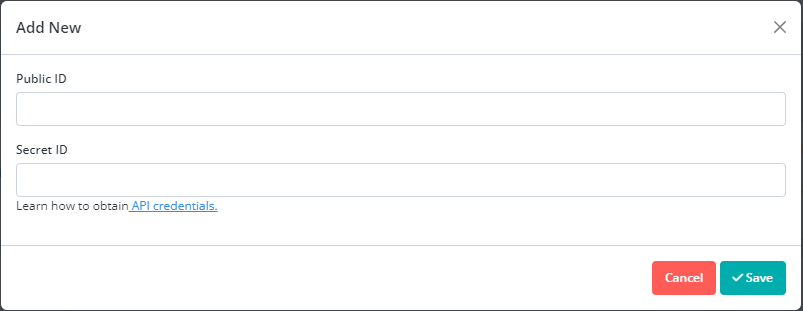
Click Add New.
Enter your Kinguin store name, Public ID, and Secret ID.
Click Save.
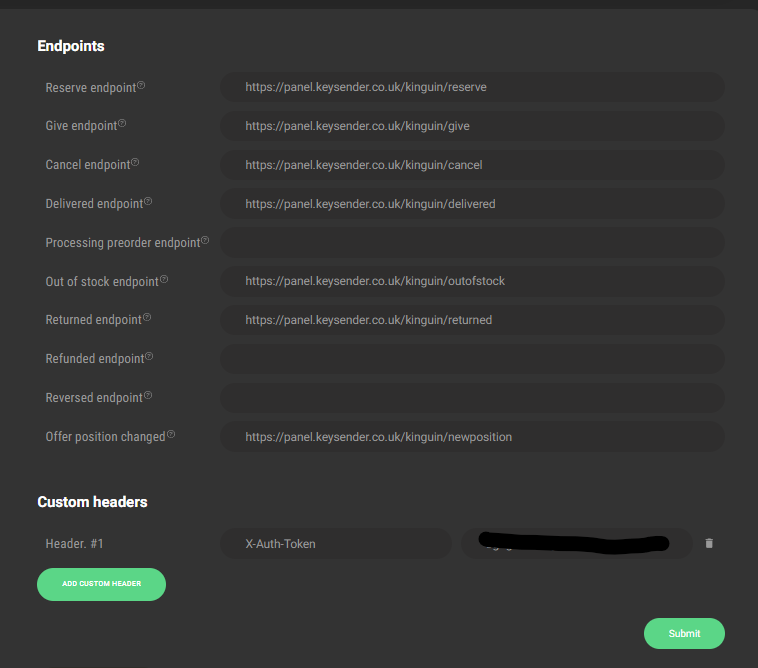
Open your Kinguin seller account and go to Account, then Webhooks.
Confirm the webhooks show as active.
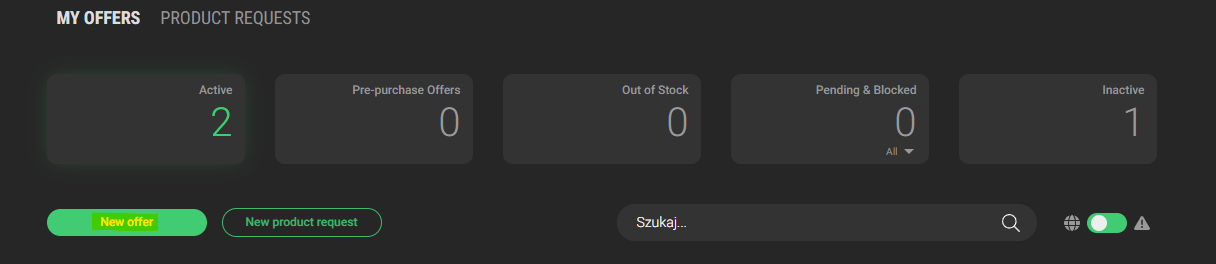
Create an offer in Kinguin for each product you want to sell.
Confirm each offer shows a declared stock number. The current maximum is 10,000.
In Keysender, open Products under Kinguin.
Click Refresh to load your Kinguin listings.
Connect each listing to the correct Keysender inventory database.
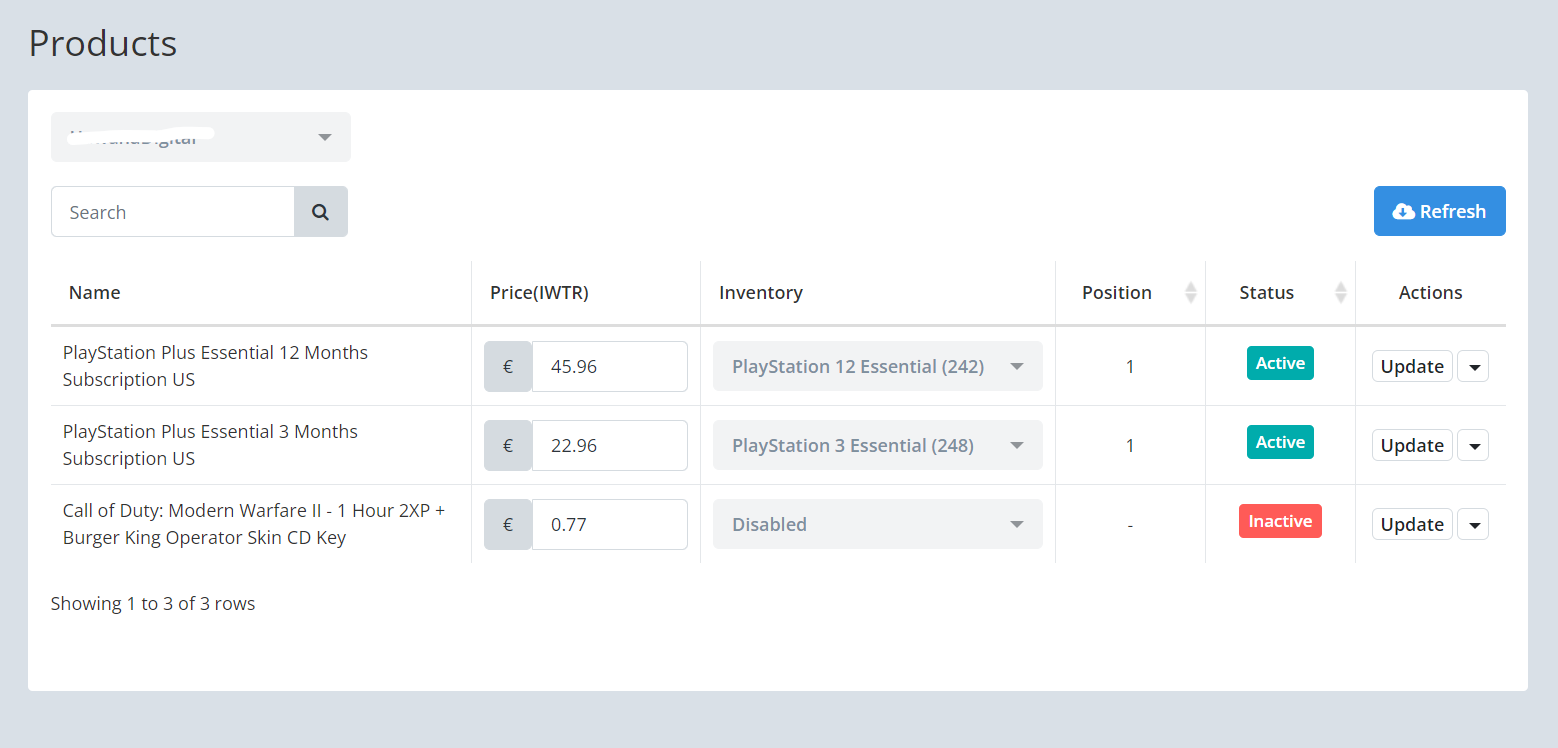
Your Kinguin products appear in Keysender with databases assigned. When a buyer purchases on Kinguin, Keysender fulfills the order automatically.
Submit a claim so Keysender Support can review it.
You need access to your Keysender vendor account, a registered Kinguin seller account, and Kinguin Public API access approved for production with Declared Stock activated. Request the API by emailing api@kinguin.io with your Kinguin account email and asking for a Public ID and Secret.
After you email api@kinguin.io to request activation of the Public API in production, Kinguin can take up to a week to reply with your application name, Public ID, and Secret. Ask for Declared Stock activated so your offers show a stock number.
Active webhooks let Kinguin notify Keysender of new orders so fulfillment runs automatically. Open your Kinguin seller account, go to Account then Webhooks, and confirm they show as active. Also confirm each offer shows a declared stock number, with a current maximum of 10,000.
