Create a PayPal Button in Keysender to sell a digital product through PayPal and deliver codes automatically after each payment. This is the fastest way to sell without a storefront: you place the button on any page or send the link directly, PayPal takes the payment, and Keysender delivers from the database you connect.
Make sure you have:
Open Integrations in Keysender and activate PayPal Buttons.
Select PayPal Buttons from the side menu.
Click Add Button.
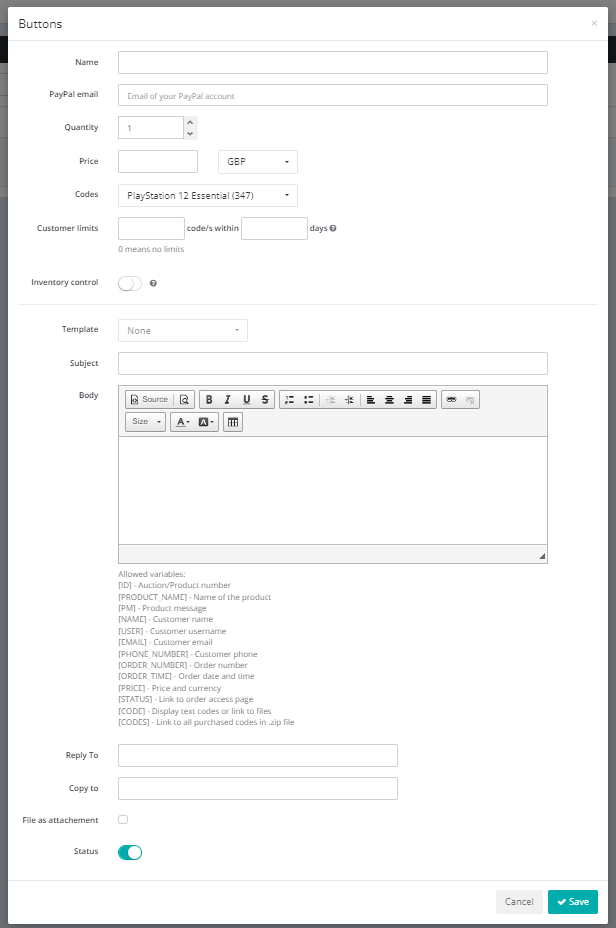
Enter a Name to identify the button.
Enter the PayPal Email associated with your PayPal account.
Set the Quantity of products delivered per sale.
Set the Price for the product.
Select the Codes database to deliver from.
Set the Limit Per Buyer to restrict how many purchases a single buyer can make within a set number of days. Enter 0 for no limit.
Enable Inventory Control to sync stock with the product database.
Set the Message Subject and Message Text in the Message Template for the purchase confirmation email.
Click Save.
The Add Button form holds every field you set above.
Open the Buttons tab and find the button you created.
Click Activate to make the button ready for sales.
The button shows as active in the Buttons tab. When a buyer completes a PayPal payment, Keysender delivers a code from the assigned database automatically.
Submit a claim so Keysender Support can review it.
You need access to your Keysender vendor account, a PayPal account with a verified email address, and a product database with codes added in Keysender. The button delivers codes from that database automatically after each PayPal payment.
Set the Limit Per Buyer field on the Add Button form to restrict how many purchases a single buyer can make within a set number of days. Enter 0 for no limit. You can also enable Inventory Control to sync stock with the product database.
When a buyer completes a PayPal payment, Keysender delivers a code from the database you selected on the button. The confirmation email uses the Message Subject and Message Text you set in the Message Template. Activate the button first in the Buttons tab.
