Create an email or inbox template in Keysender to control how delivery messages reach your buyers across your connected channels. Email templates are used when the code is sent by email; inbox templates are used when the channel delivers through its own messaging. You can keep one template for every product or assign a different one per database.
Make sure you have:
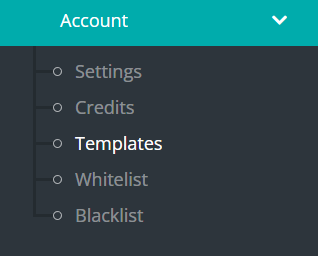
Open Account in Keysender, then select Templates.
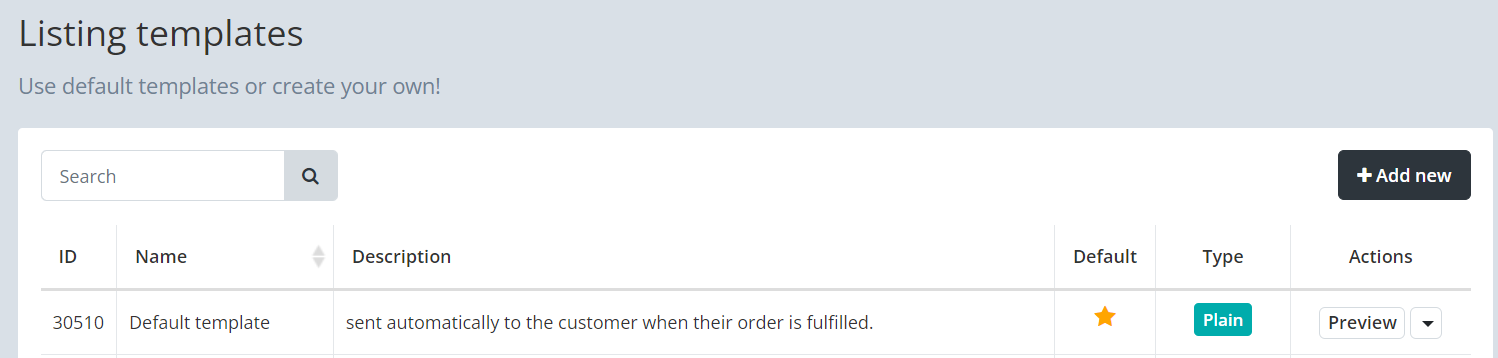
Find the starred Default template in the list. Keysender creates it automatically and applies it to products with monitoring active.
Click Add New +.
Select the template type.
Choose HTML Email for styled emails with design blocks. Choose Plain Text Email for marketplace inboxes such as eBay or Mercado Libre, which require plain text to display correctly.
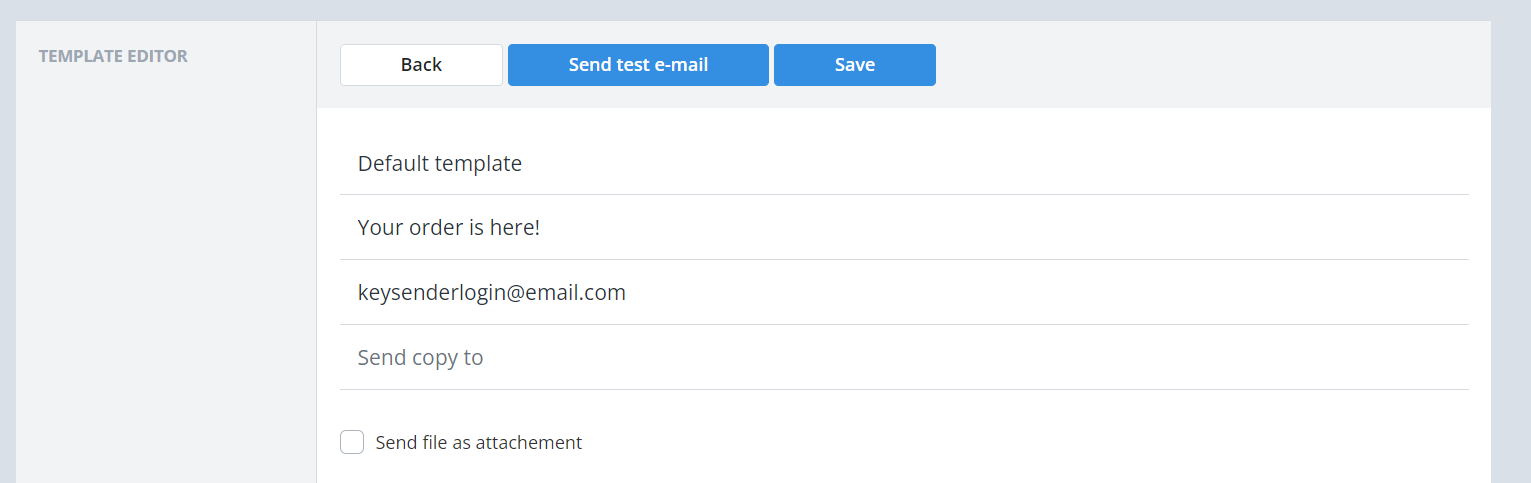
Enter a template name.
Set the Reply to address. This is usually filled with the email you use to log in to Keysender.
Set the Send Copy to address if you want a copy of each sent email forwarded to another inbox.
Add your content and insert variables where you want order data to appear automatically.
Available variables:
[ID] for the auction or product number.[PRODUCT_NAME] for the product name.[PM] for the product message.[NAME] for the customer name.[EMAIL] for the customer email.[PHONE_NUMBER] for the customer phone number.[STATUS] for a link to the order Access Page.[USER] for the customer username.[ORDER_NUMBER] for the order number.[ORDER_TIME] for the order date and time.[PRICE] for the price and currency.[CODE] for the text code or a link to files.[CODES] for a link to all purchased codes in a .zip file.For HTML templates, arrange the design blocks you need.
Available blocks:
Click Save.
Choose whether to apply the template to all products currently using it.
The new template appears in your template list. Products with monitoring active keep the Default template until you assign a different template in product settings.
Submit a claim so Keysender Support can review it.
Choose HTML Email for styled emails that use design blocks like Header, Body, and Order Codes. Choose Plain Text Email for marketplace inboxes such as eBay or Mercado Libre, which require plain text to display order details correctly.
Insert variables where you want order data to appear. For example, use [PRODUCT_NAME] for the product name, [NAME] for the customer name, [ORDER_NUMBER] for the order number, and [CODE] for the text code or a link to files.
No. Products with monitoring active keep the starred Default template until you assign a different template in product settings. When you save a new template, you can choose whether to apply it to all products currently using it.
