Reading this in another language? Use your browser's built-in translate option. Button and field names stay in English on purpose, to match what you see in Keysender.
Add transaction delivers a code for a sale made outside any connected channel, for example on your own storefront or a marketplace Keysender does not integrate with. Enter the buyer's email, pick the product, set the quantity and price, and Keysender sends the code using the email template you choose.
TL;DR
Make sure you have:
Open Transactions, then Add transaction in Keysender.
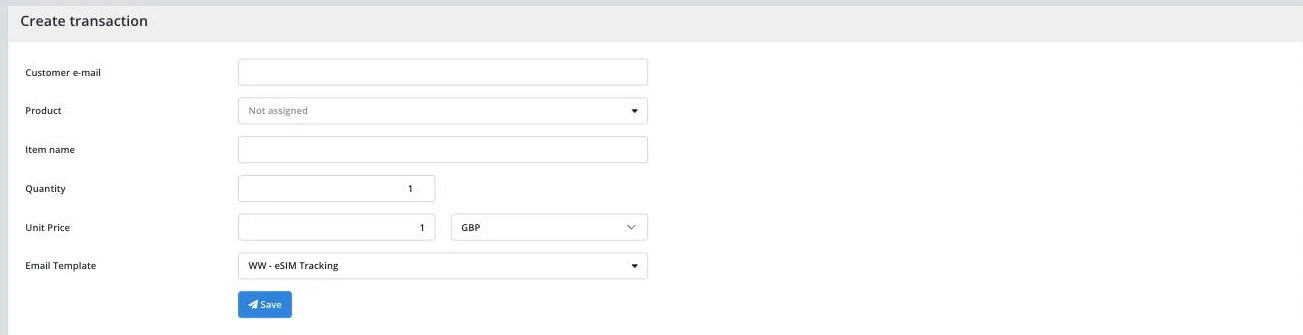
Enter the buyer's email under Customer e-mail. This is where the code and delivery email are sent.
Select the product to deliver from under Product, a searchable dropdown of your inventories. Item name, what the buyer sees in the email, fills in automatically from your selection, though you can edit it.
Set Quantity (1 up to 5,000, the same cap as the API) and Unit Price with its currency.
Pick the Email Template to send. If you leave the default in place, confirm it is the right one for this sale before saving.
Click Save. The code delivers immediately; there is no confirmation step first.
Saving returns you to Summary a couple of seconds later, and the new transaction appears there and under Transactions with the buyer's email and the code marked as delivered. See viewing specific order details for what that record looks like.
| Symptom | Cause | Action |
|---|---|---|
| Save does nothing or shows a field error | Customer e-mail, Product, or Quantity is missing or invalid | Fill in all three; Customer e-mail must be a real email format and Quantity must be between 1 and 5,000 |
| The buyer got the wrong delivery email | The wrong template was selected under Email Template | Check the template before every save; nothing here remembers your last choice as a default |
| A second code was delivered for the same sale | Save was clicked twice, or the page was refreshed after saving | Each save is a new delivery with no deduplication; check Transactions for a duplicate before saving again |
| The product you need is not in the Product list | It has no available codes in inventory | Add codes to it first under adding digital products to inventory |
Submit a claim so Keysender Support can review it.
Use it for a sale made outside any connected channel, for example on your own storefront or a marketplace Keysender does not integrate with. A connected channel's sales deliver automatically and never need this screen.
It fills in automatically from the product you selected under Product, though you can still edit it before saving.
No. Clicking Save delivers the code immediately using the selected Email Template, with no draft or preview step first.
