Also available in: Français·हिन्दी·Polski·中文
Reading this in another language? Use your browser's built-in translate option. Button and field names stay in English on purpose, to match what you see in Keysender.
Create an inventory in Keysender and add your keys, files or reusable content so they deliver to customers across your connected channels. An inventory is one pool of stock for one product, so every connected listing draws from the same count and you never oversell the same code twice.
TL;DR
Make sure you have:
Open Catalog, then Inventory in Keysender.
Click Add New.
Enter a Name and a SKU for tracking, then choose the inventory Type:
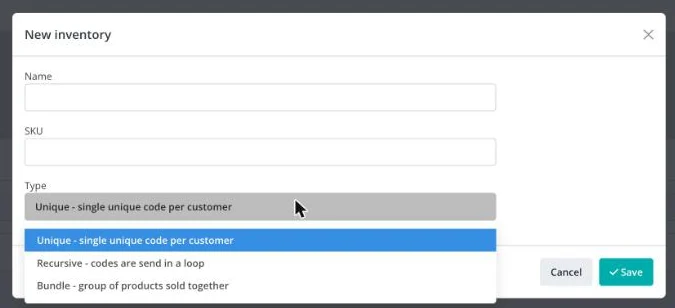
Click Save.
Open the new inventory and click its Inventory tab.
Set the entry Type to Text to paste codes, or Files to upload one file per code (up to 100MB per file).
Paste one code per line, or upload your files, then click Add.
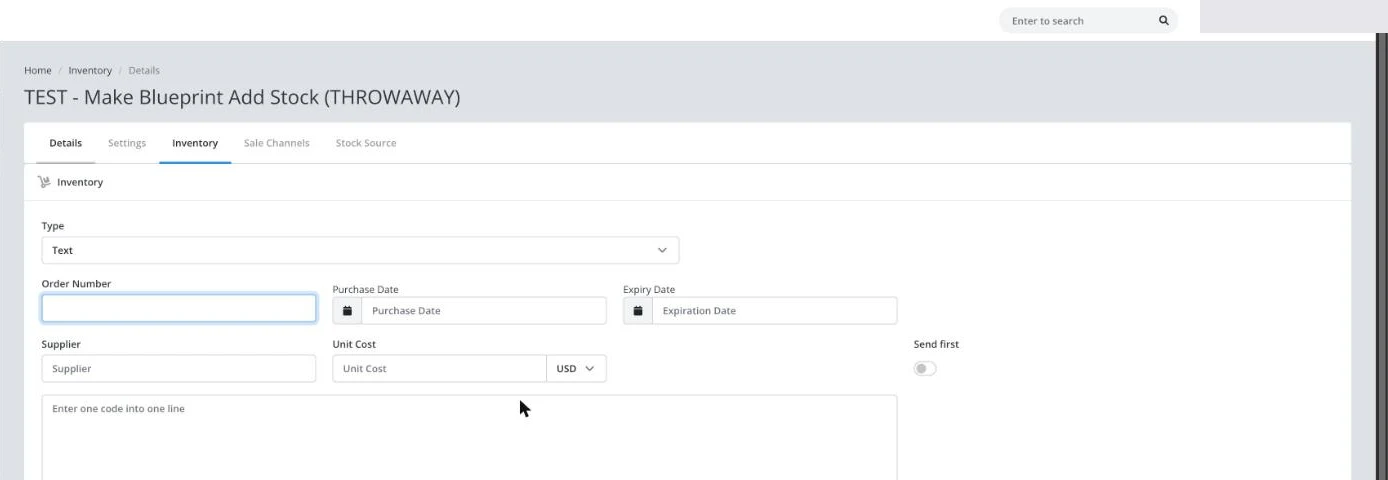
Order Number, Purchase Date, Expiry Date, Supplier and Unit Cost are all optional and only affect your own cost tracking, not delivery.
Click the Details tab.
Check the Name and SKU match what you expect, and add an Inventory message if you want redemption instructions or extra text shown to the buyer. Use the [INVENTORY_MESSAGE] variable to include it in an email or inbox template, or it appears automatically on the guest Access Page.
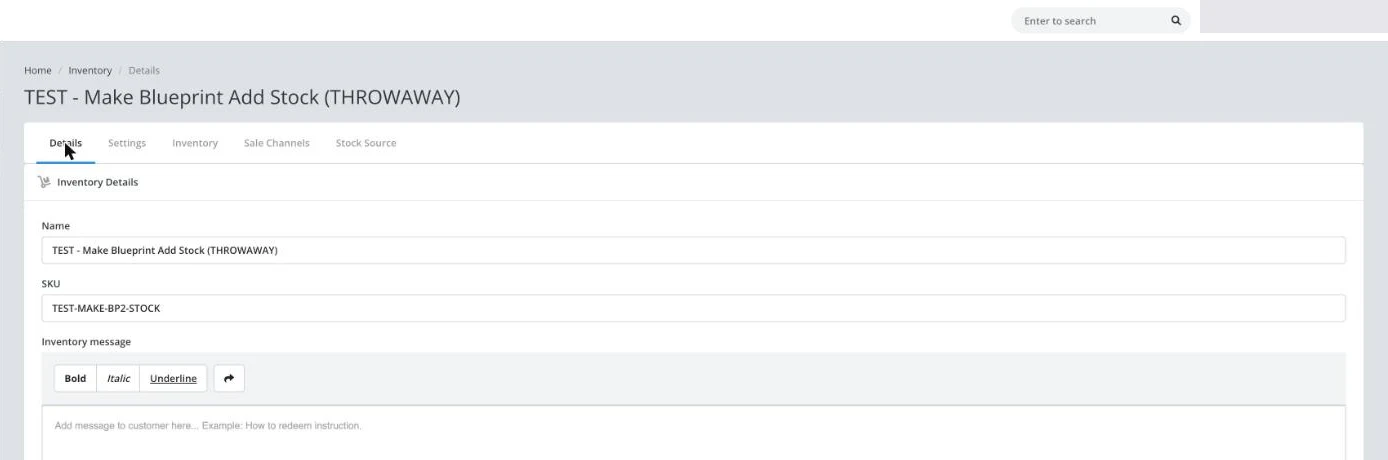
Click Update.
The new inventory appears in your Inventory list with the codes or files you added, and its Available count matches what you loaded. You can now connect it to a product on any connected channel. If you buy this stock from someone else, record them as a supplier to track unit cost. See Managing your inventory for editing, exporting, bulk-importing and per-code details after this.
| Symptom | Cause | Action |
|---|---|---|
| Codes will not upload | The file is over 100MB, or the pasted text has one empty line breaking the paste | Split large files into smaller ones; remove blank lines from the pasted list |
| A listing shows out of stock but the inventory has codes | The listing is not yet connected to this inventory | Connect the listing to this inventory |
| The Inventory message is not showing to buyers | The template does not include the [INVENTORY_MESSAGE] variable |
Add [INVENTORY_MESSAGE] to the listing's email or inbox template |
Submit a claim so Keysender Support can review it.
Choose One use for unique keys like activation codes or game codes, where each code goes to one customer. Choose Multi-usage for reusable items like images, PDFs, multiple-use codes, or reset instructions that can be delivered to many customers.
You can add your keys as text or upload files up to 100MB per file. Multi-usage inventory suits files like images, PDFs, and reset instructions, while One use suits unique keys entered as text.
In the details tab you add an Inventory Message using the [INVENTORY_MESSAGE] variable. This message can be added to email or inbox templates and appears on the guest Access Page, so buyers see it alongside their delivered product.
